Reinstall Protocol
Reinstall Windows
Data Loss
Backup your data first
Reinstalling Windows wipes every drive you clean. Move anything important off this machine before you start, and do not connect to the internet until the setup is fully done.
Reinstalling Windows with a USB is highly recommended to ensure the disk bans are gone.
Step // 01
1. Choose & Download Windows
Pick the version you want to install and download it.
Windows 10
microsoft.com · Media Creation Tool
Windows 11 — 22H2
Google Drive · ISO
Windows 11 — 23H2
Google Drive · ISO
Most systems auto-detect Ethernet drivers after reinstalling. To be safe, download the network drivers (LAN) for your motherboard model and save them to your USB. Search your model + "network drivers" on Google (e.g. "Gigabyte A520M KV2 1.1 Network drivers").
Step // 02
2. Create USB Installer
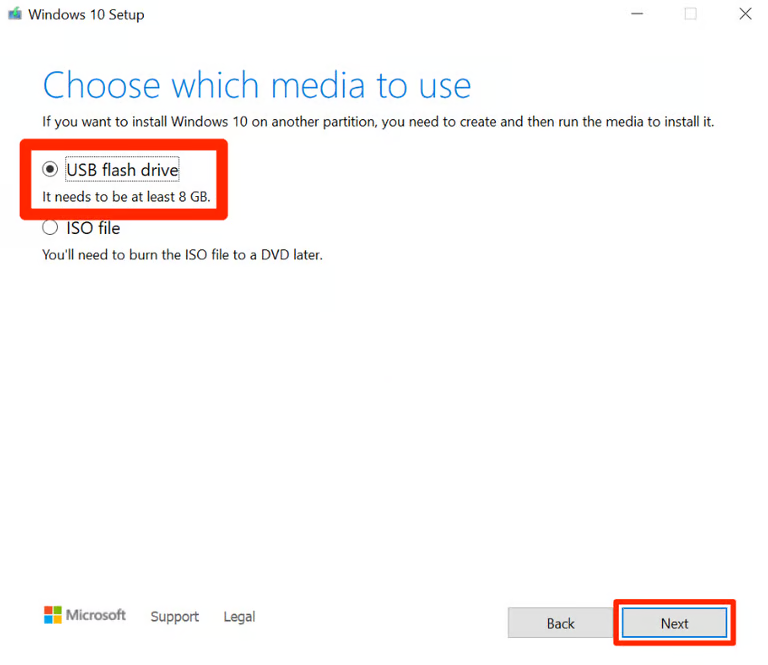
- Click "Download Now" on the Microsoft page.
- Open the Media Creation Tool as Administrator.
- Select Create installation media (USB flash drive).
- Use all the recommended options and wait for it to finish.
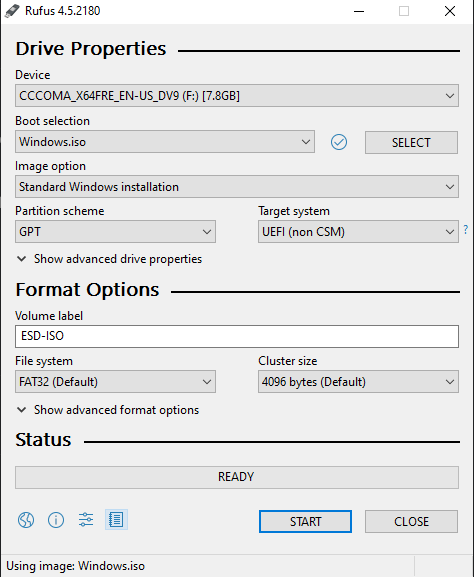
Use Rufus to flash the ISO to your USB.
Download Rufus
rufus.ie · official download
- Open Rufus, select your USB and the ISO you downloaded.
- Press Start, then press Yes.
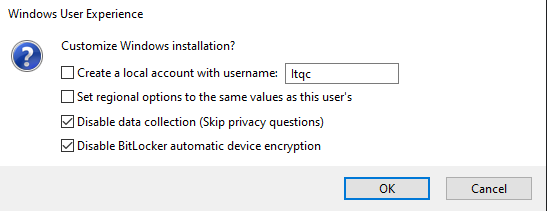
- Check boxes will appear — check them ALL, and for the last option choose Pro.
- Once it reaches 100% and states "READY", close Rufus.
- Drag the config file below onto your USB root.
autounattend.xml
local file · drop onto the USB root
Step // 03
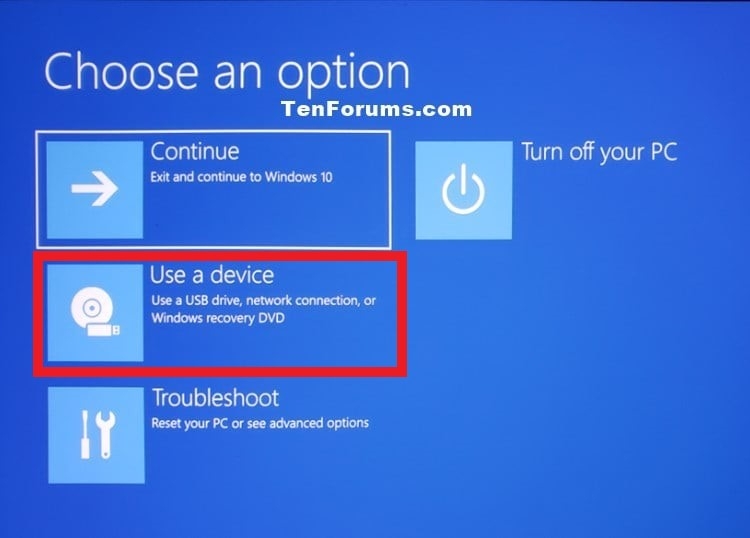
3. Boot from the USB
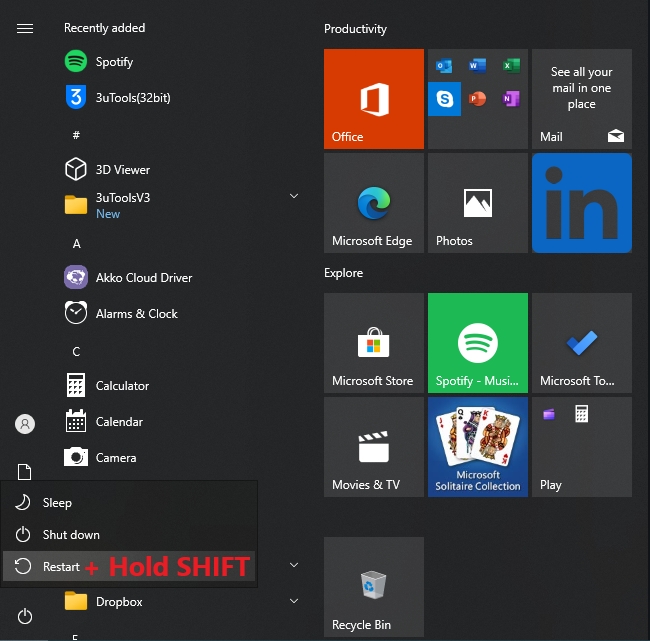
- Hold SHIFT, click Restart and keep holding SHIFT.
- Select Use a device and pick your USB drive.
Step // 04
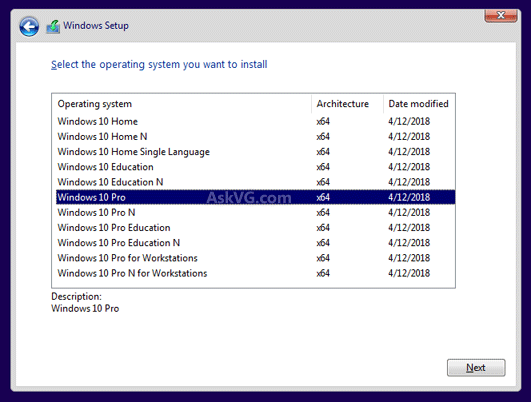
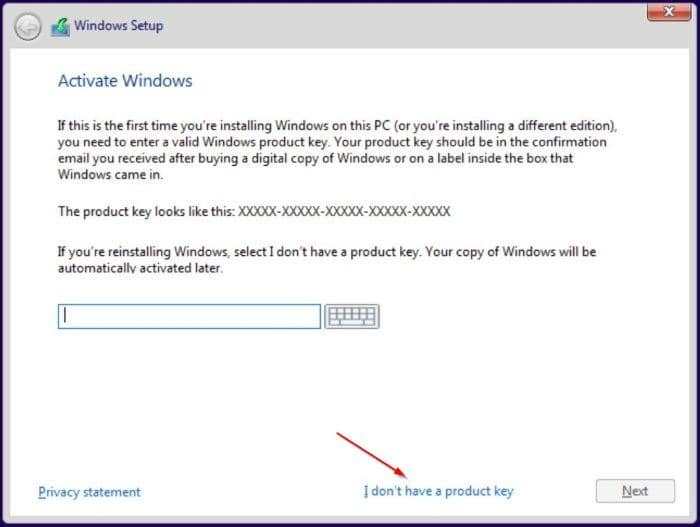
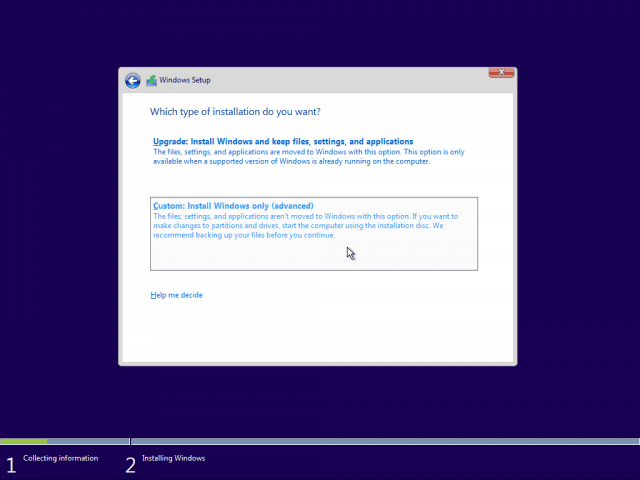
4. Install Windows
- Select Windows Pro (10 or 11 depending on your ISO).
- Select "I don't have a product key" (skip if not prompted).
- Pick Custom: Install Windows only (advanced).
Step // 05
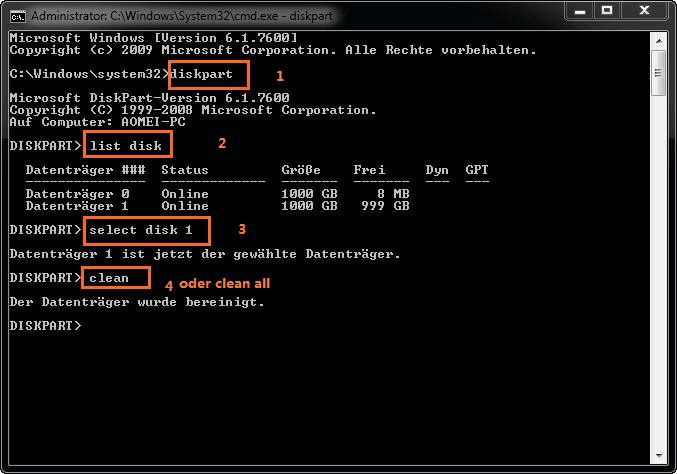
5. Disk Cleanup (Mandatory)
- Press
SHIFT + F10(a CMD will pop up). - Type
diskpartinto the CMD. - Type
list diskto see all your drives. - Type
select disk X(X = disk number) thencleanfor ALL disks, besides your USB.
Flash drives (USB) are usually smaller and listed last. Do not clean your USB!
- It should output "Succeeded in cleaning the disk".
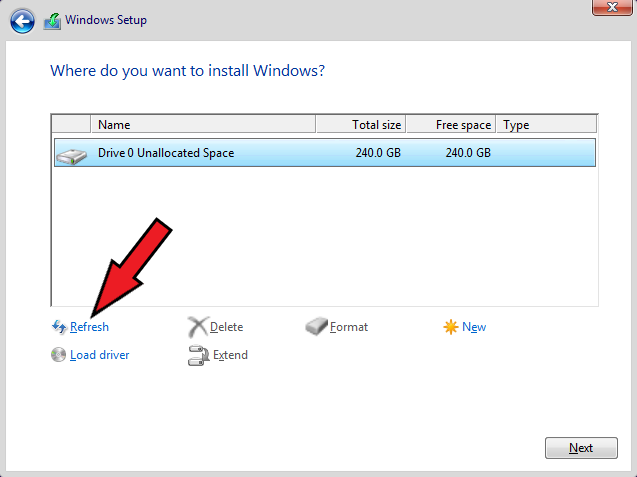
- Close the CMD and click Refresh.
Select your main drive (Unallocated Space), click Next, and the installation will start.