Network Protocol
Network Unflag
Required
Mandatory step
All steps on this page are required. Skipping any of them can result in your hardware being flagged again.
Step // 01
1. Reset network stack
Open a Command Prompt as Administrator and run these commands one by one:
ipconfig /release
ipconfig /flushdns
netsh winsock reset
netsh int ip reset
ipconfig /renew
Step // 02

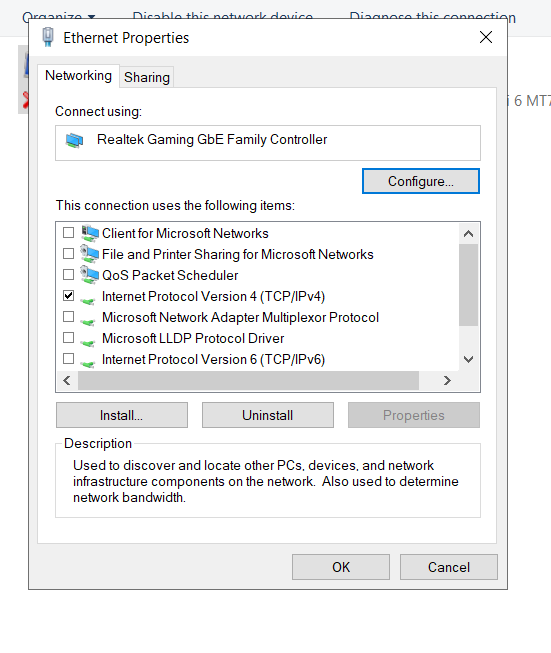
2. Disable adapters & IPv6
- Press
Win + R, typencpa.cpland click OK. - Disable everything except your main Ethernet connection.
- Right-click on the connection you are using and click Properties.
- Disable all protocols except Internet Protocol Version 4 (TCP/IPv4).
Step // 03
3. Network adapter advanced settings
- Press
Win + R, typedevmgmt.mscand click OK. - Expand Network Adapters by clicking the arrow.
- Right-click on the adapter you are using and click Properties.
- Go to the Advanced tab.
Find these settings and set them all to Disabled. Skip any that are missing:
Advanced EEE
Energy Efficient Ethernet
Green Ethernet
Auto Disable Gigabit
NS Offload
Power Saving Mode
ARP Offload
Flow Control
IPv4 Checksum Offload
Large Send Offload v2 (IPv6)
TCP Checksum Offload (IPv6)
UDP Checksum Offload (IPv6)
Step // 04
4. Restart PC
Restart your PC after applying all changes above.